Thursday, November 27, 2025

Installing TigerVNC in Ubuntu 24.04

Installing TigerVNC in Ubuntu 24.04

Ubuntu 24.04 supports RPD protocol but it behaves in a way that is not fit for my needs. The Desktop Sharing mode needs to have a user logged in or set to automatically login on reboot. Anyone will have access to your desktop if they are physically present. The Remote Login would have been the best option but when the connection is lost, all applications running on that session are gone. So you can't reconnect to that same session.

So, we are back to the tried and tested VNC protocol. To get TigerVNC working on Ubuntu 24.04 is a little tricky due to Wayland becoming the default in 24.04. To workaround Wayland, we need to install XFCE, like so:
$ sudo apt install --no-install-recommends xubuntu-desktop
This installs base XFCE4 with very applications specific to XFCE.

Install xfce4-terminal for convenience. GNOME-Terminal is pretty heavy and uxterm/xterm are not to my liking.
$ sudo apt install xfce4-terminal
Now install TigerVNC
$ sudo apt install tigervnc-standalone-server
Then set the password that will be used to connect to the VNC server by running it like below:
$ vncpasswd
Now we have to define the mapping between a VNC session and user for that session. To do this open /etc/tigervnc/vncserver.users, like:
$ sudo vim /etc/tigervnc/vncserver.users
Below is an example that shows user u1 is mapped to VNC server session 2:
# TigerVNC User assignment
#
# This file assigns users to specific VNC display numbers.
# The syntax is <display>=<username>. E.g.:
#
# :2=andrew
# :3=lisa
:2=u1
Now run VNC server, like:
$ vncserver -geometry=1360x768 -xstartup /usr/bin/startxfce4 :2 -localhost no
Using RealVNC client on Windows, you can calculate geometry of the server like this to get maximum client area: The same script can be used to calculate client dimensions for remote desktop client.

Should you need to close/kill the session, do:
$ vncserver -kill :2


There is a big caveat that I haven't figured out, yet. No user should be logged in to the console/physical session. Otherwise, everything goes crazy.
References:
https://medium.com/oracledevs/your-next-developer-desktop-with-ubuntu-24-04-and-tigervnc-on-oci-d0356ffa0cf9

Tuesday, November 18, 2025

Error opening directory '/media/sf_C_DRIVE': Permission denied

I tried to share a folder from Windows 10 host to Kali 2020.1 Linux guest using VirtualBox but I am getting the following error message:

Error opening directory '/media/sf_C_DRIVE': Permission denied

To fix, do:
$: sudo adduser $USER vboxsf
Then log-off then log back in. If this does not work, reboot the VM

Getting similar issue using Fedora 33(tested up to Fedora 40) on VirtualBox 7.0.12, below is the error message
This location could not be displayed You do not have the permissions necessary to view the contents of "sf_D_DRIVE"
To fix do the following and reboot the VM.
$: sudo usermod -a -G vboxsf $USER
Refs:
https://stackoverflow.com/questions/26740113/virtualbox-shared-folder-permissions

Wednesday, October 29, 2025

Install Winget on Windows 2022 or Windows 10 LSTC

Install Winget on Windows 2022 or Windows 10 LTSC

Install Pre-reqs

Install Microsoft.UI.Xaml/2.8.6

Navigate to https://www.nuget.org/packages/Microsoft.UI.Xaml/2.8.6, on the left side look for Download Package button to download microsoft.ui.xaml.2.8.6.nupkg.

Using 7-zip, extract microsoft.ui.xaml.2.8.6.nupkg\tools\AppX\x64\Release\Microsoft.UI.Xaml.2.8.appx

Install
PS C:\>Add-AppxPackage .\Microsoft.UI.Xaml.2.8.appx

Install Microsoft.VCLibs.140.00.UWPDesktop

Download https://aka.ms/Microsoft.VCLibs.x64.14.00.Desktop.appx

Install
PS C:\>Add-AppxPackage .\Microsoft.VCLibs.x64.14.00.Desktop.appx

Install Winget

Download Microsoft.DesktopAppInstaller_8wekyb3d8bbwe.msixbundle or any recent versions (tested using 1.8.1911) from Github

Download license file 76fba573f02545629706ab99170237bc_License1.xml (should be one of the artifacts) from Github, the same URL from above.

Install (on elevated cmd/shell)
PS C:\>cd ~/Downloads
PS C:\Users\u1\Downloads> Add-AppxProvisionedPackage -Online -PackagePath .\Microsoft.DesktopAppInstaller_8wekyb3d8bbwe.msixbundle -LicensePath .\76fba573f02545629706ab99170237bc_License1.xml -Verbose

If you are in a hurry, you can grab the script below and run it on a PowerShell console
And if you trust me ;), run below:
iex (Invoke-RestMethod -Uri "https://gist.githubusercontent.com/technoscavenger/37f06e23daa833d0c7bee1d378ff332e/raw/122d300c8a6bb711dcd70652551599818dfdb09e/InstallWinget.ps1")


Refs: https://8thstring.blogspot.com/2023/04/install-winget-on-windows-2022.html

Wednesday, October 01, 2025

QNX: Running a function at specific interval using timer interrupt

#include <iostream>
#include <csignal>
#include <ctime>
#include <cerrno>
#include <cstring>
#include <unistd.h>
#include <sys/time.h>
#include <time.h>
#include <stdio.h>

void timer_handler(int signo) { 
    struct timeval tv;
    gettimeofday(&tv, NULL);
    char buf[100];
    struct tm* nowtm;
    nowtm = localtime(&tv.tv_sec);
    strftime(buf, sizeof(buf), "%Y-%m-%d %H:%M:%S", nowtm);
    printf("Timer expired at %s.%03ld\n", buf, tv.tv_usec / 1000);
}

int main() {
    timer_t timerid;
    struct sigevent sev;
    struct itimerspec its;
    struct sigaction sa;

    // Install the timer handler
    sa.sa_flags = 0;
    sa.sa_handler = timer_handler;
    sigemptyset(&sa.sa_mask);
    if (sigaction(SIGRTMIN, &sa, NULL) == -1) {
        std::cerr << "sigaction: " << errno << std::endl;
        return -1;
    }

    // Create the timer
    sev.sigev_notify = SIGEV_SIGNAL;
    sev.sigev_signo = SIGRTMIN;
    if (timer_create(CLOCK_REALTIME, &sev, &timerid) == -1) {
        std::cerr << "timer_create: " << errno << std::endl;
        return -1;
    }

    // Set the timer to expire every second
    its.it_value.tv_sec = 1;
    its.it_value.tv_nsec = 0;
    its.it_interval.tv_sec = 1;
    its.it_interval.tv_nsec = 0;
    if (timer_settime(timerid, 0, &its, NULL) == -1) {
        std::cerr << "timer_settime: " << errno << std::endl;
        return -1;
    }

    // Main loop
    while (true) {
        pause(); // Wait for signals
    }

    return 0;
}

Sunday, September 21, 2025

Qt console hello world

Qt console hello world

This guide shows how a Qt console hello world looks like.

▣ Open Qt Creator and click on Create Project...
▣ Create Qt Console Application by following the section from @1 to @3. 
▣ In Project Location window provide a project name, i.e., HelloWorldConsole
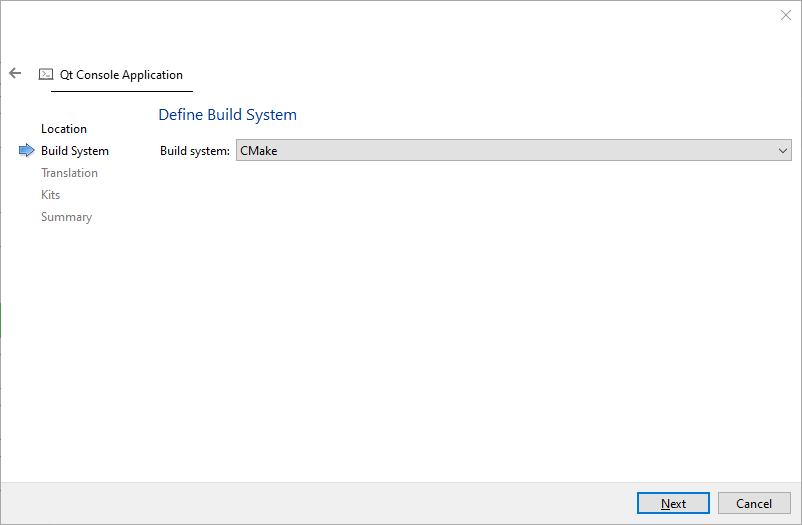
▣ In Define Build System select CMake
▣ In Translation File, take the default values
▣ In Kit Selection, select the toolchain kit to be used. Below shows only one which is MinGW 64-bit. 
▣ In Project Management, take the default. 
▣ In line 6, I have added an instruction to output Hello World in to the console. Also changed to return 0 to exit the application as event loop is not needed.

▣ Gist source code shown below for convenience
In Qt Creator 17.0.1/Qt 6.9.2, need to add QTextStream
▣ Running it using Qt Creator is well and good but we probably want to run it external to the IDE. To deploy the binary with all the dependencies, open the compiler environment used to build the application. In the case above we have used Qt 6.4.1 (MinGW 11.2.0 64-bit). 
▣ Run the following command (change the paths as necessary)
cd \
md tmp
cd tmp
copy C:\Users\t\Documents\build-HelloWorldConsole-Desktop_Qt_6_4_1_MinGW_64_bit-Debug\HelloWorldConsole.exe
windeployqt HelloWorldConsole.exe
▣ The folder structure should look like this. It also shows a sample out from the application. 


Keywords: CPP, Qt, Hello World

Wednesday, September 17, 2025

Several modules must be compiled when running VMware Workstation on Ubuntu

Several modules must be compiled when running VMware Workstation on Ubuntu

I have a machine with Ubuntu 24.04.2 with VMware Workstation working as expected. When I connected to the machine Ubuntu told me there were packages available that can be updated inlcuding the kernel. So, I did the update and rebooted the machine. Running VMware Workstation failed with "several modules must be compiled". The fix is quite easy, run the following to fix it.
$ sudo vmware-modconfig --console --install-all
Notes:
- VMWare Workstation: 17.6.3
- Host: Ubuntu 24.04.2 LTS

Installing TigerVNC in Ubuntu 24.04

Installing TigerVNC in Ubuntu 24.04 Ubuntu 24.04 supports RPD protocol but it behaves in a way that is not fit for my needs. The Desktop Sh...